
If you’ve landed on this page, chances are you’re trying to get into your Blooket account, and something isn’t going smoothly, or you’re a teacher setting up the platform for the first time and want to understand exactly how the login process works before you introduce it to a classroom. Blooket has become one of the most popular gamified learning platforms in schools across the United States and the United Kingdom, turning quiz-based review sessions into something that feels closer to a video game than a worksheet. But like any platform with different account types, age groups, and access points, the login process can trip people up in ways that aren’t always obvious. This guide walks through how Blooket login actually works, the differences between student and teacher access, common problems people run into, and practical fixes for getting back into your account when things go wrong.
What Blooket Actually Is
Blooket is an online learning platform that lets teachers build or borrow quiz-based question sets, then run them as live classroom games with names like Gold Quest, Tower Defense, and Café. Students answer trivia-style questions correctly to earn points, currency, or advantages within whatever game mode the teacher has chosen, which makes review sessions feel a lot less like a test and a lot more like a competition. It’s used heavily in K-12 classrooms, though plenty of homeschool parents, tutors, and even corporate trainers have adopted it for the same reason teachers love it: it turns repetitive review material into something people actually want to participate in.
The platform runs on two main sides. Teachers, tutors, or hosts create accounts to build question sets and launch live games or assign homework versions of them. Students typically don’t need a full account at all to play a live game in class, since they can usually join with just a game code and a nickname. Understanding that distinction is actually the first step in solving most of the login confusion people run into, because a lot of “I can’t log into Blooket” situations are really “I’m trying to log into something I never needed an account for in the first place.”
How Teacher and Host Login Works
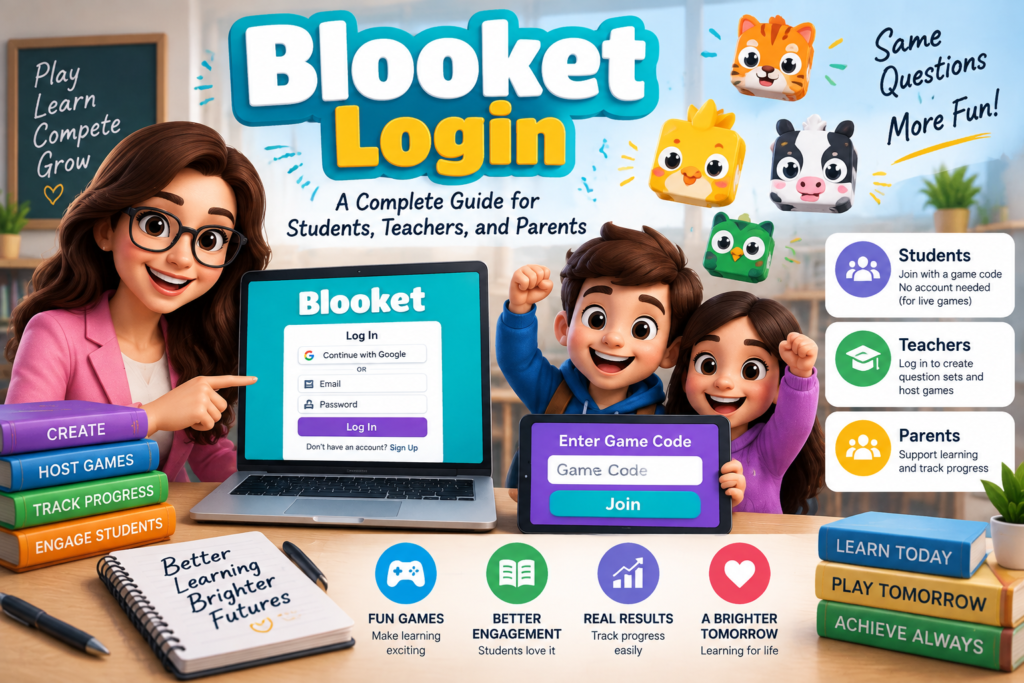
For teachers, tutors, and anyone hosting games or building content, Blooket does require a proper account. Signing up can be done with an email address and password, or through a Google account, which tends to be the faster option for teachers already using Google Workspace for Education in their school. Once an account exists, logging back in is a matter of heading to Blooket’s website, selecting the login option, and entering either an email and password combination or continuing with the linked Google account.
Teachers who signed up through Google should always try the “continue with Google” option first if a direct email and password login isn’t working, since accounts created that way don’t actually have a separate Blooket password to remember. This single detail accounts for a surprisingly large share of login trouble, particularly for teachers who set up an account months earlier, forgot which method they originally used, and then try to reset a password that was never created in the first place.
Once logged in, a teacher’s dashboard shows their library of question sets, any sets they’ve favorited or purchased from the marketplace, and the tools needed to host a live game or assign one for homework. This is also where subscription-based features live, since Blooket offers a free tier alongside paid plans that unlock additional game modes and customization options.
How Student Login Works
This is where things diverge most from a typical platform. For a live, in-class game, students generally don’t log into a personal account at all. Instead, the teacher starts a game session from their own account, which generates a short numeric game code. Students go to Blooket’s join page, enter that code, choose a nickname, and they’re in. No email, no password, no account creation required for that specific use case.
Homework-style assignments work a little differently. When a teacher assigns a question set as homework rather than a live game, students typically need some way to be identified so their individual progress can be tracked and reported back to the teacher. Depending on how the assignment is set up, this might involve entering a name tied to a class roster rather than creating a full standalone account, which keeps the barrier to entry low for younger students while still giving teachers the data they need.
Some students do end up creating their own personal Blooket accounts, particularly older students who want to build their own question sets, host games for study groups, or keep track of in-game currency and cosmetic items they’ve unlocked across multiple sessions. For those students, the login process mirrors the teacher process almost exactly: email and password, or a linked Google account, entered through the standard login page.
Common Login Problems and How to Fix Them
The single most common issue is simply forgetting which method was used to originally create the account. Because Blooket allows both traditional email signup and Google sign-in, it’s easy for someone to try the wrong one, get an error, and assume something is broken with the platform itself. Before assuming a password reset is necessary, it’s worth trying the Google login option, especially on a device or browser where that Google account is already signed in, since that alone resolves a large share of “my password isn’t working” situations.
When a genuine password reset is needed, Blooket’s login page includes a password recovery option that sends a reset link to the email address on file. This only works, of course, if the email address tied to the account is still accessible, which becomes a real problem for students whose school-issued email addresses get deactivated after graduation or a district email migration. In those cases, account recovery can require reaching out to Blooket’s support team directly with whatever account details can be verified, such as the approximate sign-up date or any question sets that were created.
Browser-related issues are another frequent culprit, particularly in school environments where devices are shared across many students throughout the day. Cached login data, outdated browser extensions, or restrictive school network filters can all interfere with the login page loading properly or with a game code being accepted. Clearing the browser cache, trying a different browser entirely, or switching to a private or incognito window often resolves these issues faster than troubleshooting account credentials, since the problem frequently has nothing to do with the account itself.
For the live-game join process specifically, the most common hiccup is simply an expired or mistyped game code, since those codes are generated fresh for each session and stop working once the host ends the game or starts a new one. If a code isn’t being accepted, the first thing worth checking is whether the teacher’s screen is still actively displaying that exact code, since it’s easy to glance at an old code from a previous class period by mistake.
Account Security Considerations for Teachers
Because a teacher’s Blooket account is tied to potentially years of created content, purchased marketplace sets, and student performance data, it’s worth treating the login credentials with the same seriousness as any other school-related account. Using a unique password rather than one shared across multiple platforms, enabling any available two-factor options, and linking the account to a Google Workspace login where a school district already manages that infrastructure are all reasonable steps to reduce the risk of losing access or having an account compromised.
For districts or schools rolling Blooket out at scale, it’s also worth having a documented process for what happens when a teacher leaves or changes roles, since account recovery becomes considerably more complicated once the original email address tied to the account is no longer active. A quick internal note of which email and login method was used for each staff account can save a lot of frustration later.
Getting the Most Out of Blooket Once You’re In
Once login stops being the obstacle, Blooket opens up a genuinely flexible toolkit for review-based learning. Teachers can build question sets from scratch, import them from spreadsheets, or search the platform’s marketplace for sets other educators have already created and shared, which can save significant prep time around exam review periods. Mixing up game modes across a semester also keeps engagement higher than repeatedly running the same format, since the underlying trivia questions can feel fresh again inside a different game structure.
For students who do maintain their own accounts, spending a little time exploring the customization options, from character skins to in-game currency systems, tends to increase engagement with the review content itself, since the game layer gives students a reason to care about accuracy and speed beyond just the grade attached to an assignment.
Why Login Confusion Is So Common With Education Platforms
Blooket isn’t unique in generating this kind of login confusion, and it helps to understand why the problem shows up so often across education technology generally. Schools frequently roll out multiple platforms in the same semester, each with slightly different login conventions, and students and even teachers can lose track of which tool uses which credentials. A teacher juggling a learning management system, a gradebook platform, a video conferencing tool, and something like Blooket on top of it all can be forgiven for mixing up which one uses a district-issued Google account and which one has its own standalone password.
This is compounded by how often these accounts sit dormant between semesters. A teacher might set up a Blooket account in September, use it heavily through a unit, and then not touch it again until months later when a new topic calls for a review game. By that point, remembering the exact login method used originally becomes genuinely difficult, which is why checking both options, Google sign-in and email password, before assuming something is broken tends to be the fastest path back into an account.
Final Thoughts
Most Blooket login issues come down to a handful of predictable causes: confusion between email and Google sign-in methods, outdated or inaccessible email addresses tied to an account, browser quirks on shared school devices, or simple mix-ups around game codes that expire quickly by design. Understanding which side of the platform you actually need, whether that’s a full teacher account, a student account, or no account at all for a quick in-class game, solves most of the confusion before it even starts. From there, the platform tends to work exactly as intended, turning ordinary review sessions into something students genuinely look forward to.
Frequently Asked Questions
Do students need an account to play Blooket in class? No, not for live games. Students simply join with a game code and a nickname provided by the teacher hosting the session, without needing to create their own account.
What should I do if my Blooket password isn’t working? First, try logging in with Google instead of email and password, since accounts created through Google sign-in don’t have a separate Blooket password. If the account genuinely uses email login, use the password reset option on the login page to receive a reset link.
Can I log into Blooket with a school Google account? Yes. Blooket supports Google sign-in, which many teachers and students use through their school’s Google Workspace account rather than creating a separate email and password combination.
Why isn’t my Blooket game code working? Game codes are generated fresh for each session and expire once that session ends. Double-check that the code matches what’s currently displayed on the host’s screen rather than a code from an earlier class or session.
What happens to my Blooket account if my school email gets deactivated? If the email tied to your account becomes inaccessible, password recovery through that email won’t work. In that situation, contacting Blooket support directly with whatever account details you can verify is usually the next step.
Is there a difference between a free and paid Blooket login? The login process itself is the same regardless of subscription tier. Once logged in, paid plans simply unlock additional game modes and customization features that aren’t available on the free tier.