
Once you’ve logged into Blooket, everything happens from one central place: the dashboard. It’s the control room for the entire platform, the spot where teachers build question sets, launch live games, review student performance, and manage the account settings that keep everything running smoothly. For anyone new to Blooket, or anyone who’s used it casually but never actually explored what the dashboard offers beyond hitting “host,” this guide breaks down exactly what you’re looking at, how to use it well, and how to avoid the small frustrations that trip up first-time users.
This isn’t just a login screen with a few buttons on it. It’s genuinely the heart of the teaching experience on the platform.
First Impressions of the Dashboard
When you log in for the first time, the Blooket dashboard can feel like a lot at once. There’s a library of question sets, a marketplace of content built by other educators, navigation options for hosting games, and account settings tucked into a menu that isn’t always where you’d expect it to be. New users sometimes click around for a few minutes before finding the exact button they need, which is completely normal.
The layout is organized around a simple idea, even if it doesn’t feel that way immediately: everything you need to either create content or launch a game lives on this one screen, and everything else is secondary. Once that clicks, the dashboard stops feeling cluttered and starts feeling efficient.
The Question Set Library
At the center of most teachers’ dashboard experience is their personal library of question sets. This is where every quiz you’ve built from scratch, imported from a spreadsheet, or saved from the marketplace lives in one scrollable list. Each set shows a title, a subject tag if you’ve added one, and a quick preview of how many questions it contains.
Clicking into any set opens an editor where questions, answer choices, and images can be adjusted without needing to rebuild the whole thing from scratch. This matters a lot for teachers who reuse the same core content year after year but need to tweak a few questions to match a new textbook edition or a slightly different unit structure. Rather than starting over, you’re editing in place.
Organizing this library well pays off over time. Teachers who tag and label their sets clearly, by subject, grade level, or unit, tend to find what they need in seconds during a busy class period. Those who don’t often end up scrolling through a long, unlabeled list right as students are waiting for a game to start, which is a small but avoidable source of stress.
Hosting a Game From the Dashboard
The hosting flow is arguably the single most-used feature on the entire dashboard, and it’s designed to be fast. From any question set, a “host” button starts the process of launching a live game. From there, you choose a game mode, such as Gold Quest, Tower Defense, or one of the many other formats Blooket offers, each with its own visual style and scoring mechanic layered on top of the same underlying quiz questions.
Once a mode is selected, the dashboard generates a unique game code almost instantly. That code is what students use to join, and it appears prominently on screen so it can be read aloud or projected for a full classroom to see. From this same hosting screen, teachers can also toggle a handful of settings before starting, things like whether questions appear in a fixed order or shuffle randomly, and whether the game runs live in class or gets assigned as homework for students to complete independently.
Homework mode deserves its own mention here, since it changes what the dashboard shows afterward. Rather than ending when the class period does, a homework assignment stays open for a window of time you set, and the dashboard tracks completion and accuracy for every student who logs their answers, giving you a report to review whenever you’re ready rather than needing to watch it unfold live.
Reviewing Reports and Student Data
After a game wraps up, whether live or homework-based, the dashboard generates a report breaking down how the class performed. This typically includes overall accuracy, which questions gave students the most trouble, and individual performance broken out by name or nickname depending on how the session was set up.
These reports are genuinely useful for spotting patterns. If a huge share of the class missed the same two or three questions, that’s a clear signal about where a re-teach might be worth the class time, rather than relying on a gut feeling about what was confusing. Teachers who check this reporting regularly tend to get noticeably more instructional value out of Blooket than those who use it purely for the fun of the game itself, since the data turns a review activity into something closer to a diagnostic tool.
Exporting this data is possible in many cases, which matters for teachers who need to fold Blooket performance into a gradebook or share results with other staff during a team meeting. The exact export options can shift a bit as the platform updates, so it’s worth checking the reporting section directly if you haven’t exported data recently.
The Marketplace
Tucked into the dashboard is Blooket’s marketplace, a searchable collection of question sets created and shared by other educators. Rather than building every quiz from scratch, teachers can search by subject or keyword and often find something close to what they need already built, sometimes free and sometimes available for a small cost tied to certain premium sets.
This feature alone saves an enormous amount of prep time, particularly during busy stretches of the school year like exam review periods when there simply isn’t time to author dozens of new question sets from nothing. It’s worth spending a few extra minutes previewing a marketplace set before committing to it in front of a class, since quality and accuracy can vary depending on who created it.
Account and Subscription Settings
Somewhere in the dashboard’s menu structure sits the account settings area, where email preferences, password details, and subscription information live. This is also where teachers manage whether they’re on Blooket’s free tier or a paid plan, since paid subscriptions unlock additional game modes, customization options, and sometimes expanded reporting features.
It’s a section most people only visit occasionally, usually when something needs to change, like updating a payment method or double-checking which plan is currently active. Because it’s tucked a layer or two deeper than the main hosting and library screens, it’s easy to forget it exists until you specifically need it.
Customization and Classroom Setup
Beyond content and hosting, the dashboard also includes options for setting up classes formally, which can streamline the process of assigning homework and tracking individual students by name rather than by whatever nickname they type in that day. Setting this up takes a few extra minutes at the start of a term, but it pays off across the rest of the year by keeping reports organized and consistent.
Some teachers skip this step entirely and rely on live, nickname-based games all year, which works fine for casual review sessions but makes long-term tracking harder. The right choice really depends on how much you plan to lean on Blooket’s data over time versus using it purely as a fun, low-stakes activity.
Common Dashboard Frustrations
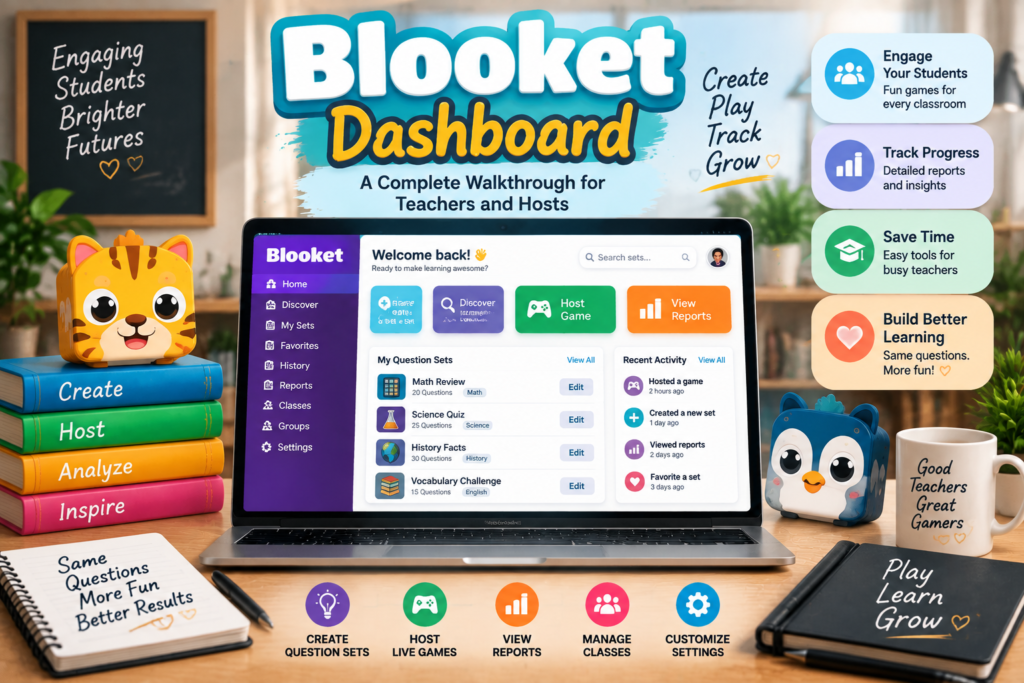
A few recurring issues come up often enough to be worth flagging directly. Question sets occasionally take a moment to load on slower school networks, especially right at the start of a class period when many devices on the same network are all connecting at once. Waiting a few extra seconds usually resolves this without needing to refresh anything.
Another common frustration is simply losing track of which question set is which after building out a large library over multiple semesters. This circles back to the organizational point made earlier: a little labeling discipline early on saves real time later, especially once a library grows past twenty or thirty sets.
Finally, some teachers expect changes made to a live question set to update instantly mid-game if they’re editing while also hosting in another tab, which generally isn’t how the platform behaves. Edits typically apply to future sessions rather than one already in progress, so it’s worth double-checking a set is finalized before hosting rather than trying to fix it on the fly.
Mobile Access to the Dashboard
The dashboard is also accessible from mobile browsers, which matters more than it might seem. Plenty of teachers check reports or tweak a question set from a phone between classes rather than waiting to sit down at a computer.
The mobile experience is a bit more condensed than the full desktop layout. Some menus collapse into a simplified navigation bar, and building brand-new question sets from scratch tends to be easier on a larger screen with a keyboard. Quick tasks like checking a report or launching a familiar game, though, work perfectly well on a phone or tablet in a pinch.
Getting Comfortable With the Dashboard Over Time
Like most tools, the Blooket dashboard becomes second nature after a handful of uses. The first session or two might involve some clicking around to find a specific setting, but the layout is consistent enough that muscle memory builds quickly. Teachers who take a little time early on to explore the library, try both live and homework hosting, and glance through a report after a game tend to get comfortable with the whole system within a couple of weeks of regular use. It also helps to revisit the dashboard occasionally even once you feel settled, since new features and layout tweaks do get introduced over time, and a small update can shift where a familiar button lives.
Frequently Asked Questions
Where do I find my question sets on the Blooket dashboard? Your personal library appears on the main dashboard screen after logging in, listing every set you’ve created, imported, or saved from the marketplace.
Can I edit a question set after I’ve already used it in a live game? Yes, sets can be edited at any time from the library. Changes apply to future sessions rather than altering a game that’s already in progress.
How do I start a live game from the dashboard? Open the question set you want to use, select the host option, choose a game mode, and the dashboard will generate a game code for students to join with.
What’s the difference between live mode and homework mode? Live mode runs a game in real time with students joining a session together, while homework mode assigns the same questions for students to complete independently within a set window of time.
Can I see how my students performed after a game ends? Yes, the dashboard generates a performance report after each session, showing overall accuracy and often a breakdown by individual student and question.
Is the Blooket marketplace free to use? Many marketplace sets are free, though some premium sets created by other educators may come with a small cost.
Do I need to set up classes to use Blooket effectively? No, but setting up named classes makes it easier to track individual student progress over time compared to relying on nicknames typed in during each session.
Why is my question set taking a long time to load? This is usually related to network conditions, especially on shared school Wi-Fi with many devices connecting at once, rather than an issue with the set itself.
Can I export student performance data from the dashboard? In many cases yes, though the exact export options can vary as the platform updates, so it’s worth checking the reporting section directly for current functionality.
How do I manage my Blooket subscription from the dashboard? Subscription and billing details are typically found in the account settings section of the dashboard, where you can view your current plan and update payment details.