
I learned what cloud backup for Mac really means the hard way. My old MacBook Air died on a Tuesday morning — no warning, just a black screen and a faint clicking sound. The Genius Bar told me the drive was gone, and with it went three years of photos and every tax document I’d ever scanned. Time Machine would have saved me. I hadn’t set it up. That afternoon I signed up for cloud backup for Mac, and I’ve had one running on every Mac I’ve owned since.
If you’re reading this guide, you’re probably one of two people: someone who just had a scare, or someone smart enough to sort this out before the scare happens. Either way, good. This guide compares the best cloud backup for Mac options in 2026 — the prices, the catches, and which one fits how you actually use your computer.
Why Your Mac Needs Cloud Backup, Not Just Time Machine
Time Machine is great. It’s free, it’s built in, and it quietly saves versions of your files to an external drive. But it has one brutal weakness: the drive usually sits right next to your Mac. House fire, flood, burglary, or a spilled coffee that takes out both the laptop and the drive beside it — Time Machine can’t help you then. That’s the whole point of cloud backup for Mac. Your files live in a data center hundreds of miles away, so the worst day your house ever has isn’t the day you lose everything.
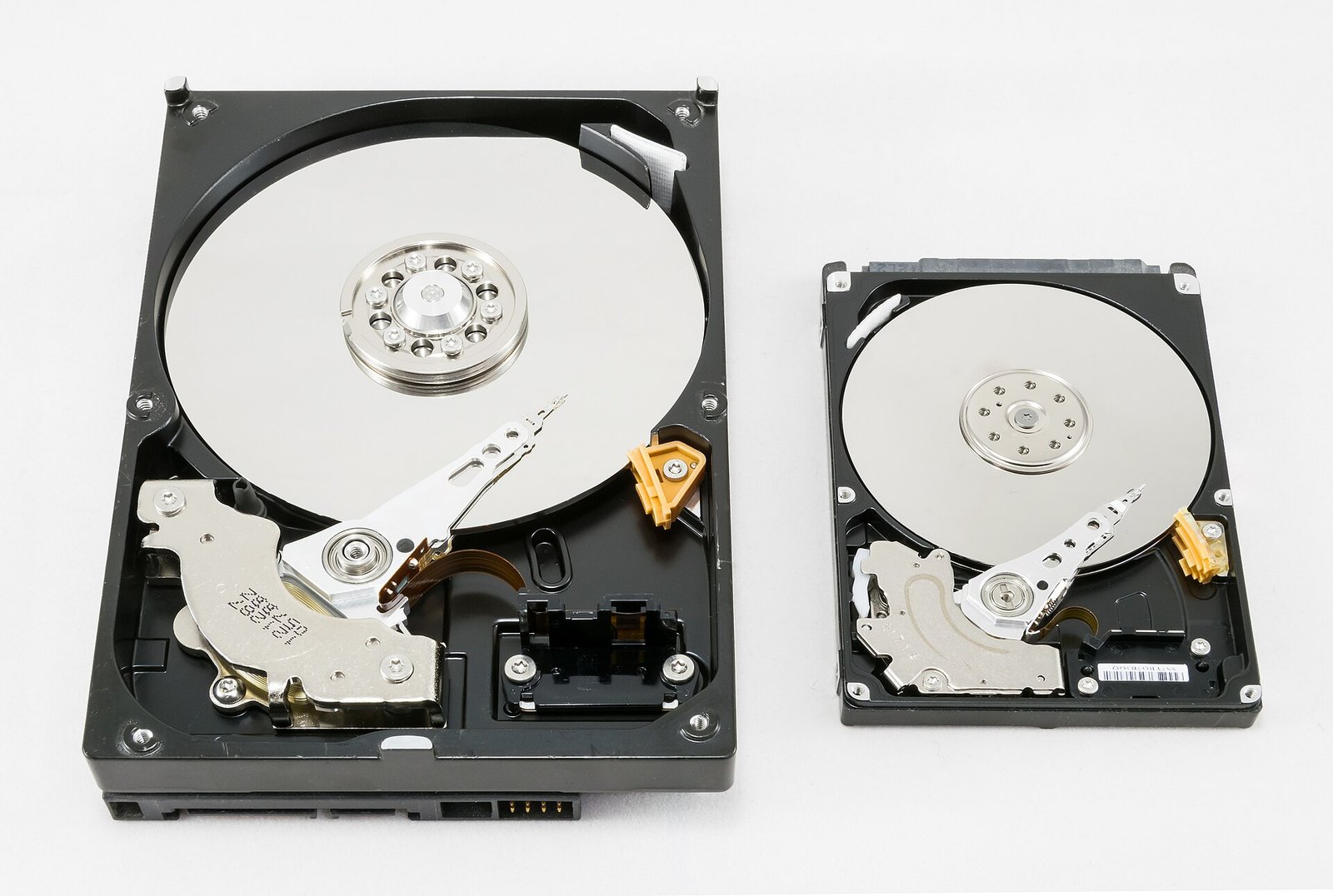
There’s a second difference people miss. Time Machine backs up what’s on your Mac. A cloud backup service does the same thing, but it also keeps working when you’re not at your desk or if your Mac is stolen, dropped, or dead tomorrow. It runs in the background, uploading new and changed files as you work. For most Mac owners, the right answer is both: Time Machine for fast local restores, plus a cloud service for the disasters Time Machine can’t cover. That is why cloud backup for Mac is worth setting up even if Time Machine already runs.
One more thing before the list. “Cloud backup” and “cloud storage” are not the same job, even though the same companies sell both. Storage services like Dropbox and Google Drive sync a folder so you can reach files from anywhere. Backup services copy your entire Mac so you can restore it after a disaster. You can use a storage service as a rough backup, and I’ll cover that option below, but a real backup service is built for the worst-case day. If you want the storage side explained properly, our guide to the best cloud storage 2026 compares the sync services head to head.
Cloud Backup for Mac at a Glance
| Service | Price | Storage | Best For |
|---|---|---|---|
| iCloud+ | From USD 0.99 per month | 50 GB to 12 TB | Apple households |
| Backblaze | USD 9 per month or USD 99 per year | Unlimited, one Mac | Set-and-forget backup |
| IDrive | Around USD 99.50 first year | 5 TB | Multiple computers |
| Google One | From USD 1.99 per month | 100 GB to 2 TB and up | Google users |
| Carbonite Safe | From around USD 75.99 first year | Unlimited, one computer | Simple unlimited backup |
| Time Machine + drive | Cost of an external drive | Drive size | Local restores |
Prices are US list prices as of October 2026. Check the vendor’s site before you pay, because backup companies change prices often, and first-year discounts can hide a much higher renewal.
iCloud+: The Backup You Already Have
Here’s the awkward truth about iCloud: if you own a Mac and an iPhone, you’re probably already paying for it, or you should be. The free tier is 5 GB, which fills up fast — one iPhone backup and a few hundred photos and it’s full. But the paid plans are cheap. The 50 GB plan costs USD 0.99 a month. The 200 GB plan is USD 2.99 a month. The 2 TB plan is USD 9.99 a month, and you can share it with up to five family members, which makes it a genuine bargain for a household.
What iCloud actually backs up on a Mac is narrower than people assume. It syncs your Desktop and Documents folders, your Photos library, and your app data. It does not back up your whole drive. Your Applications folder, your system files, the weird folder of PDFs you’ve kept since 2019 — none of that is in iCloud unless you put it in a synced folder. For most people that’s fine, because the stuff that matters lives in Documents and Photos. But it means iCloud is a sync service doing backup’s job part-time, and you should know where the gaps are.
So who should pick iCloud? If your digital life is already Apple-shaped — iPhone, iPad, Mac, maybe an Apple Watch — start here. It’s the cheapest, simplest option, and for a lot of people it’s enough on its own. Just don’t mistake it for a full backup. Pair it with Time Machine, or with one of the services below, and you’ve got real coverage. Our guide on how to back up iPhone to iCloud walks through the phone side of this if your iPhone backups are part of the problem too.
Backblaze: The Best Cloud Backup for Mac for Most People
If I had to pick one service for one Mac and never think about it again, I’d pick Backblaze. It costs USD 9 a month, or USD 99 a year if you pay annually, and it backs up everything on your Mac — unlimited storage, no file-size limits, including external drives plugged into your computer. That’s the whole pitch. No storage math, no surprise bills because your photo library grew. For a single Mac, it is the simplest cloud backup for Mac I have used.
Setup takes about ten minutes. You install the app, it starts uploading, and then it keeps going in the background. The first upload is the slow part — if you’ve got 500 GB of photos and video, expect it to take days, not hours, on a normal home connection. That’s true of every service on this list. After that, Backblaze only uploads files that changed, so you forget it’s even there.
The restore options are what sold me. You can download files from the website, restore through the app, or order a USB hard drive with your files on it, shipped to your door. If your Mac dies and you need 800 GB back right now, downloading all of that over home internet is miserable. A shipped drive is faster, and Backblaze refunds the drive cost if you return it.
There are catches, and they’re worth knowing. Backblaze charges per computer, so two Macs means two subscriptions — USD 18 a month instead of USD 9. It keeps deleted files and old versions for 30 days by default; if you want a year of version history you pay USD 2 a month extra, or USD 4 a month for unlimited history. And it’s Mac and Windows only. None of that changes my recommendation. For a single Mac, Backblaze is the simplest unlimited backup you can buy.
IDrive: Best Cloud Backup for Mac If You Have More Than One Computer
Backblaze’s per-computer pricing is its only real weakness, and IDrive is the answer to it. One IDrive subscription covers multiple computers — Macs, Windows PCs, phones, tablets — plus external drives and even some NAS devices. The standard 5 TB plan usually runs about USD 99.50 for the first year, with renewal pricing higher, so check the current figure on IDrive’s site before you sign up. For a household with two laptops and a phone each, that one subscription replaces two or three Backblaze plans, and the math starts looking very friendly.
IDrive also backs up your phones and tablets properly, not just your computers, and it keeps up to 30 versions of every file. There’s a free 10 GB tier if you want to test it, and the desktop app is solid, if a little old-fashioned — the interface looks like it was designed in 2015 and never updated. It works fine. It’s just not pretty.
The trade-off is the storage cap. Five terabytes sounds enormous until you’re backing up two Macs, each with a 1 TB drive, plus a photo library. Most families won’t hit it. But if you’re a video editor with 4 TB of raw footage on one machine, IDrive’s cap will bite, and Backblaze’s unlimited plan is the better call. My rule of thumb: count the computers first. One Mac, go Backblaze. Two or more, do the IDrive math.
Google One: The Backup for People Who Live in Google
Google One is the storage plan behind Google Drive, and a lot of Mac users already have it without realizing. If you pay for extra Gmail or Google Photos storage, that’s Google One. The 100 GB plan costs USD 1.99 a month, 200 GB is USD 2.99, and 2 TB is USD 9.99. The backup angle is real but limited: Google’s Drive for desktop app can back up folders from your Mac, including Desktop, Documents, and Photos, to your Google storage.
It’s a decent option if you’re already deep in Google’s world — Gmail, Google Docs, an Android phone, Google Photos full of your kids’ birthdays. The files are easy to reach from anywhere, the mobile apps are good, and sharing is effortless. But it’s a sync service, not a true backup service, so there’s no version history as deep as IDrive’s and no shipped hard drive when disaster strikes. Think of Google One as a safety net you already own, not a backup strategy you chose.
Carbonite Safe: The Quiet, Simple Alternative
Carbonite has been doing this longer than almost anyone. Safe Basic costs around USD 75.99 for the first year, covers one computer with unlimited storage, and does exactly what it says on the tin. There’s a fancier tier, Safe Plus, that adds external drive backup and automatic video backup, and a top tier that adds courier recovery — they ship you a drive, like Backblaze does.
The bad: the Mac app feels like an afterthought compared with the Windows version, uploads can be slower than Backblaze on the same connection, and the company has changed hands a few times, which always makes me slightly nervous about long-term support. Carbonite is a fine choice if you want unlimited backup and don’t like Backblaze for whatever reason, but it doesn’t beat Backblaze on price, speed, or polish.
Time Machine Plus Cloud: The Setup That Actually Works
Here’s what I’d actually tell a friend to do. Don’t pick one backup. Run two, because they protect against different disasters.

First, plug in an external drive and turn on Time Machine. It’s free, it’s already on your Mac, and it restores a deleted file in about thirty seconds. Go to System Settings, then General, then Time Machine, pick your drive, and you’re done. A 2 TB external drive costs around USD 60 to USD 80 these days.
Second, pick one cloud service from this list and let it run. Backblaze if you have one Mac. IDrive if you have a household of computers. iCloud+ if you’re all-in on Apple and mostly worried about photos and documents.
This is the 3-2-1 rule, and it’s the only backup advice that has never gone out of fashion: three copies of your data, on two different kinds of storage, with one copy off site. Your Mac is copy one. Time Machine is copy two. The cloud is copy three, and it’s the one that saves you when the house floods. I’ve seen too many people with a perfect Time Machine setup lose everything to a stolen laptop bag. Don’t be that person.
How to Set Up Cloud Backup on Your Mac
Whatever service you pick, the setup follows the same shape. Budget twenty minutes, and do it now, while you’re thinking about it.
- Pick your service and make an account. Start with the free trial if there is one — Backblaze gives you 15 days, IDrive gives you 10 GB free, and iCloud is already sitting on your Mac.
- Install the app and sign in. Every service on this list has a native Mac app. Download it from the vendor’s site or the App Store, never from a random link.
- Choose what to back up. The default is usually “everything except system files,” and that’s the right choice for most people. If storage is capped, exclude the obvious junk first: your Downloads folder and anything you can re-download.
- Let the first backup run. Plug in your Mac, connect to Wi-Fi, and leave it alone. Overnight is ideal. The first upload is slow — that’s normal, and it’s a one-time cost.
- Test a restore. This is the step everyone skips, and it’s the only one that matters. Delete a test file, restore it from the backup, and confirm it comes back. If restoring is hard, find out now, not on the worst day of your year.
What to Check Before You Pay
- Version history: how far back can you go? Thirty days is standard. A year costs extra almost everywhere.
- Deleted files: if you delete something by accident, how long before the backup forgets it too? Backblaze and IDrive keep deleted files for 30 days by default.
- Restore options: can you download single files, restore everything at once, and order a shipped drive? The drive option matters more than you think.
- Encryption: your files should be encrypted before they leave your Mac, and the best services let you set a private encryption key that even the company can’t read. Write that key down somewhere safe — if you lose it, nobody can recover your files.
- Renewal price: first-year discounts are everywhere in this business. Check what year two costs before you commit.
Quick Checklist: Picking Your Cloud Backup for Mac
- Count your computers: one Mac means Backblaze, several means IDrive
- Check the renewal price, not just the first-year deal
- Confirm external drives are covered if your photos live on one
- Turn on Time Machine too — cloud backup is the second copy, not the only one
- Test a restore in the first week, then check the backup monthly
FAQs
Is iCloud enough as a cloud backup for Mac?
For photos, documents, and app data, yes — especially if you’re all-in on Apple. But iCloud doesn’t back up your whole drive, so pair it with Time Machine or a service like Backblaze for full coverage.
What is the best cloud backup for Mac in 2026?
Backblaze is the best pick for one Mac: USD 9 a month, unlimited storage, and a shipped-drive restore option. IDrive wins for households with several computers, and iCloud+ wins for Apple-only households.
How long does the first backup take?
It depends on how much data you have and your upload speed. A 500 GB library can take several days on a typical home connection. After that, only changed files upload, so backups finish in minutes.
Can I back up an external drive with cloud backup for Mac?
Yes, with Backblaze and IDrive — both include attached external drives in the backup. iCloud does not cover external drives.