
A Chromebook is the one school device that almost every student already has in their hands, and it is also the device most likely to block game downloads. That combination makes free online games to play with friends on Chromebook a search with a very practical goal: find games that run in the Chrome browser, need no install, need no account, and let a whole class or a group of friends play together in the same lesson or the same evening.
The good news is that the best games for this setup are also the simplest. Drawing games, quiz games, word games and card games all run happily in a browser tab, and they work on the cheapest school Chromebook as well as on a brand-new one. This guide lists the games that actually work, explains how to set them up in a classroom, and covers the small Chromebook tricks that make the difference between a smooth game and a frozen screen.
Why Chromebooks Are Made for Browser Games
A Chromebook runs almost everything in the Chrome browser. That sounds like a limitation, but for multiplayer games it is a strength. There is nothing to install, nothing to update, and nothing that needs an administrator password. A teacher can share one link, every student clicks it, and the whole class is in the same game within a minute.
Chromebooks also handle browser games well because the games themselves are light. A drawing game or a quiz game uses a tiny fraction of the memory that a downloaded game would need. The main thing a Chromebook needs is a stable internet connection, and that is true of any online game on any device.
The one real limit is storage of a different kind: attention. A Chromebook in a classroom usually has a dozen tabs open already, and a game that demands a fast reaction will lose to a slow connection or an overloaded tab. The games in this guide are chosen to survive that. They are forgiving of slow connections, they do not punish a player for a two-second delay, and they keep working when the Wi-Fi dips for a moment.
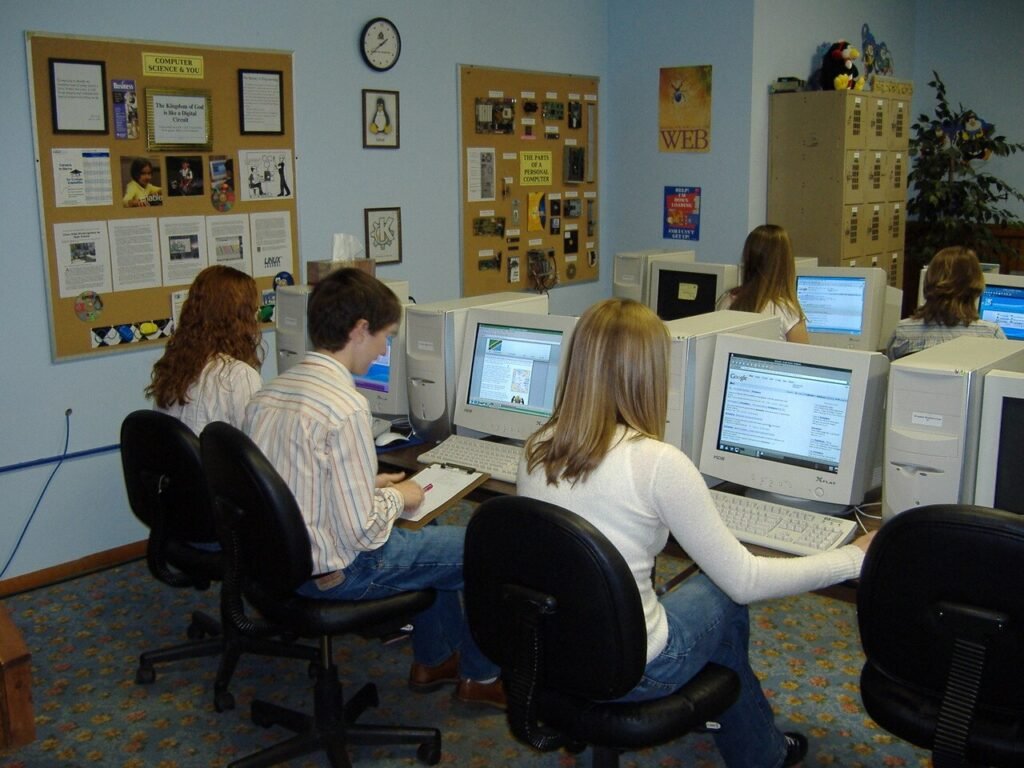
How to Play Together on Chromebooks
Playing together on Chromebooks works in one of two ways, and the setup is different for each.
In the first way, every student opens the game on their own Chromebook and joins the same room with a code or a link. This is the best way for quiz games, drawing games and word games, because everyone has their own screen to draw on or answer from. The teacher creates the room, writes the code on the board, and students type it in. It takes about a minute once students have done it once.
In the second way, the teacher shares one screen and the class plays together from it. The teacher opens the game on the classroom screen or on a video call, and students shout out answers, vote, or take turns coming to the front. This is the best way for younger classes, for games that need a big shared board, and for any game where not every student has a device. A platform like Baamboozle is built for exactly this: one shared screen, teams answering together, and no sign up needed for the students. If you want the step-by-step version, read how to play Baamboozle before your first lesson.
Most teachers end up using both ways in the same week: shared-screen games for the whole class, and join-with-a-code games for small groups or pairs. The games below say which way each one suits best.
Before You Start: Five Quick Chromebook Checks
Run through these once, before the lesson, and you will avoid nearly every problem that ruins a Chromebook game session.
First, check that the game site is not blocked. School networks block sites by category, and game sites are often blocked by default. Open the game on a school Chromebook, not on your home computer, and confirm it loads. If it is blocked, ask your IT support to allow that one address.
Second, close extra tabs. A Chromebook with fifteen tabs open will struggle with any game. Ask students to close everything except the game tab and, if you are on a video call, the call tab.
Third, test the sound. Some games use sound effects, and a classroom of Chromebooks all beeping at once is chaos. Decide in advance whether sound stays on, and show students where the mute button is.
Fourth, check the keyboard. Most browser games use the arrow keys, the space bar, or the mouse. A few use keys that Chromebooks handle differently, such as function keys. Test the controls yourself before the lesson.
Fifth, have a backup game ready. Keep a second link open in your own browser, so that if the first game fails you can switch in seconds instead of losing ten minutes. A drawing game is the best backup, because it loads fast and almost never fails.
10 Free Online Games to Play With Friends on Chromebook
These games all run in the Chrome browser, need no download, and let friends play together without an account. Each one notes the best group size and the best way to play it on Chromebooks.

1. Skribbl.io
Drawing and guessing. One student draws a word, the rest guess it by typing. Create a private room, set the rounds, and type in your own word list. For a lesson, the word list is the feature that matters: put in this week’s spelling words or vocabulary, and the game becomes revision. Best for groups of four to twelve, each student on their own Chromebook.
2. Gartic Phone
Drawing mixed with the telephone game. Each player draws a sentence, the next player writes what they think it shows, and the results get funnier every round. It needs at least four players and works best with six or more. Best for a fun Friday session, each student on their own device.
3. Kahoot
Quiz games with a game PIN. The teacher runs the quiz from the shared screen, and students answer on their own Chromebooks with a nickname. No account is needed to play, and the host controls the pace. Best for whole-class revision, any subject, any age from about eight up.
4. Baamboozle
A team game board where teams answer questions to win points. The teacher shares one screen, so it works even when students have no device at all, and it also works over a video call. Best for whole-class play, especially for test review and vocabulary. The question sets can be written by the teacher, so the game fits any lesson.
5. Codenames Online
A word-association game for teams. One player gives a one-word clue that links several words, and the team guesses which words belong to them. It is a thinking game, not a speed game, which makes it ideal for Chromebooks on a slow connection. Best for older students, ages ten and up, in teams of two or more.
6. Board Game Arena
Classic board and card games in the browser, with a guest mode that needs no account. The rules are explained on screen, and the pace is calm. Best for small groups of students who like proper board games, or for a quiet lunch club. It is also a good choice for students who do not enjoy fast, noisy games.
7. Uno Online
The classic card game in a browser version. Friends join with a shared link, the rules are the ones everyone knows, and rounds are quick. Best for pairs and small groups, and for mixed ages, because luck matters as much as strategy. It is a good wind-down game for the last ten minutes of a lesson.
8. Typing Race Games
Typing games turn a keyboard drill into a race. Students type words or sentences, and their car or character moves faster the more accurately they type. Best for building keyboard skills on Chromebooks, which is a real classroom need: students who can type without looking at the keys work faster in every subject. Keep the races short, two or three minutes, and rotate the groups.
9. 2048 and Number Puzzle Races
Number puzzle games where players slide tiles to combine them. They are quiet, they need no fast reactions, and they work on the weakest connection. Best as a calm challenge: give the class five minutes, and the highest tile wins. For pairs, two students can share one Chromebook and take turns, which works well when devices are short.
10. Geoguessr Free Maps
A geography guessing game where players look at a street view and guess where in the world they are. The free version offers a daily challenge and community maps. Best for geography lessons and for older students, and it sparks more discussion than almost any other game on this list. Play it on the shared screen so the whole class can debate each clue together.
Games by Age: What Works for Each Grade
Younger students, ages six to eight, do best with games that have one clear job at a time. Drawing games work because the task is simple: draw, or guess. Shared-screen games work because the teacher controls the pace and nobody is left behind by a fast screen. Avoid games with open chat, timers under ten seconds, or small text.
Students aged nine to eleven can handle their own device, a room code, and a bit of competition. Quiz games and word games are the sweet spot here. They can type fast enough to enjoy a guessing game, they can read the questions, and they care enough about winning to stay focused for twenty minutes.
Students aged twelve and up can play anything on this list, and they will quickly tell you which games they find boring. Let them vote on the game, let them suggest new ones, and let them run the host role themselves. A student host learns more about managing a group than any lesson on leadership will teach.
Classroom Management: Keeping a Chromebook Game on Track
A game on Chromebooks can go wrong in ways a board game cannot, and most of them are easy to prevent.
Set the nickname rule before anyone joins: first name only, no silly names, no names that copy another student. A game with twenty students called “xX_DarkLord_Xx” is a classroom management problem, not a game.
Set the chat rule too. Some games have open chat, and open chat in a class of thirty is a distraction engine. Turn chat off when the game allows it, or tell students that chat is for game answers only. The first student who types something off-topic loses a turn, and the rule only needs enforcing once.
Use the game as a reward with a clear end. “We play for fifteen minutes, then we go back to work” works better than “we play until the end of the lesson”, because the end is visible. A timer on the board helps: students can see the minutes ticking down, and the game ends on time.
Rotate the host. Let a different student create the room or share the screen each time. It spreads the technical skill around the class, and it stops one confident student from dominating every game.
Troubleshooting Chromebook Game Problems
If a game will not load, refresh the page once and check that the site is not blocked on the school network. If it loads at home but not at school, the school filter is the cause, and only IT support can fix it.
If the game is slow, close extra tabs and close any video call camera that is not needed. If the whole class is slow at the same time, the school Wi-Fi is overloaded, and the fix is to switch to a lighter game: a drawing or word game instead of a racing game.
If the keyboard does not respond, click once inside the game window first. Browser games only listen to the keyboard when their tab is active, and a click on the page usually fixes it. If the mouse works but the keyboard does not, try a different browser window or restart Chrome.
If a student is kicked out of a room, they can usually rejoin with the same code. Keep the code on the board until the game is finished, and tell students not to share it outside the class.
For official help with Chromebook settings, sound, and updates, the Chromebook Help Centre covers the basics in plain language.
Frequently Asked Questions
Do free online games to play with friends on Chromebook need a download?
No. Every game in this guide runs in the Chrome browser with no download, no app, and no install. If a site asks you to download something before you can play, close it and pick another game from this list, because genuine browser games never need a download.
Can students play these games without an account?
Yes. The games here need no account for players. Students join with a room code or a link and type a display name. Some games offer an optional account for saving progress, but it is never required to play a round with friends.
Why is my school Chromebook blocking a game site?
School networks block game sites by category to keep students focused, and the block applies even to educational games. Ask your school’s IT support to allow the exact address of the game you want to use. Give them the full address rather than asking for all game sites to be unblocked, because a specific request is much easier to approve.
What is the best game for a whole class on Chromebooks?
For a whole class, a shared-screen quiz or team game works best, because the teacher controls the pace and every student stays in the same round. Kahoot works well when every student has a device, and Baamboozle works well when the class shares one screen. For small groups, a drawing game like Skribbl.io is the easiest to set up and the hardest to get wrong.